

What it’s for
A webhook is a request Sentinel sends to your server when something happens, so you don’t have to poll. Sentinel POSTs a signed JSON message to your endpoint when a check completes or fails, when ongoing AML monitoring finds a new hit, when a person decides a review case, and when your credits run low. You can have up to 5 endpoints, for example one for production and one for staging. Each has its own URL, events, products, signing secret and custom headers. For API keys, test mode and errors, see Quick start. To fetch a result yourself, see Results and credits.Who can use it
- Everyone in your organization can open the Webhooks page and read the delivery log.
- Admin and Developer can add, edit, test, pause, resume and delete endpoints, and rotate secrets.
- Admin, Reviewer, Analyst and Developer can resend deliveries. Viewer / Auditor can’t.
- Webhooks don’t use credits.
Step by step
Add an endpoint
- In the sidebar, under Developer, click Webhooks. The same panel is also in Settings → Developers.
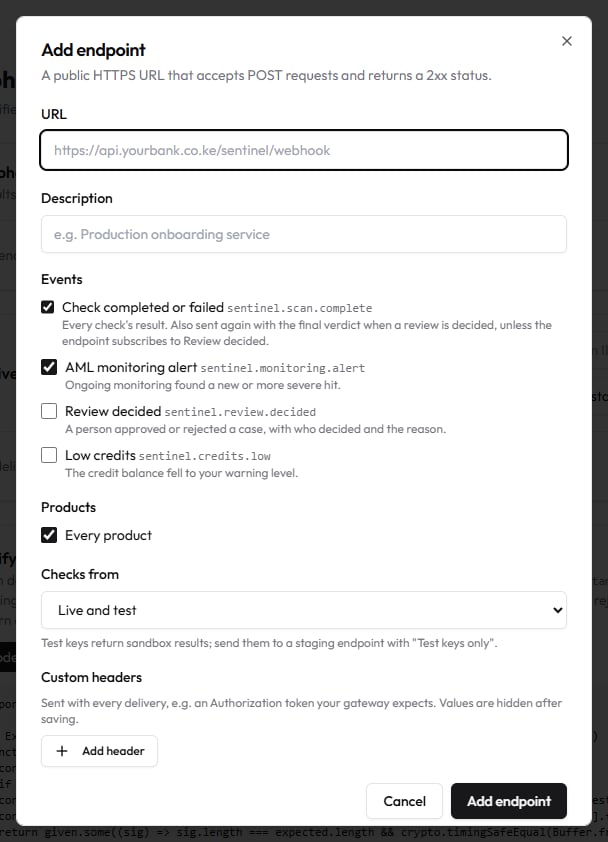
- Click Add endpoint.
- In URL, enter a public HTTPS address that accepts POST requests, for example
https://api.demobank.co.ke/sentinel/webhook. Private addresses, plainhttpand URLs with a username or password are refused. - In Description, give it a name your team will recognise, for example “Production onboarding service”.
- Under Events, tick what this endpoint receives. Check completed or failed and AML monitoring alert are ticked by default.
- Under Products, leave Every product ticked, or untick it and choose from KYC (identity), AML screening, Documents (IDP), Business (KYB) and Liveness.
- In Checks from, choose Live and test, Live only or Test keys only. Send test-key results to a staging endpoint with Test keys only.
- Under Custom headers, click Add header if your gateway expects a token, for example
Authorization. You can add up to 5. Values are hidden after saving. - Click Add endpoint.
- The Signing secret dialog shows the secret once. Copy it into your secrets manager, tick I’ve stored this secret. and click Done.
Check the signature
Every delivery carries these headers:
To check a delivery:
- Read the raw request body as bytes, before any JSON parsing.
- Reject it if
X-Sentinel-Timestampis missing or more than 5 minutes from your clock. - Compute HMAC-SHA256 of the timestamp, a full stop and the raw body, with your secret, as lowercase hex.
- Compare it in constant time with
X-Sentinel-Signature-V2, and withX-Sentinel-Signature-V2-Nextif present. Accept if either matches. - Return any 2xx status within 10 seconds. Do slow work after you respond.
Node
Python
curl
To test your receiver before Sentinel calls it, sign a sample body yourself and post it:Send a test event
- On the endpoint’s row, click Send test.
- Wait for the line under the row. Test delivered: HTTP 200 in … ms. means your receiver accepted it. Test failed: … gives the reason.
event is sentinel.test and its scan_id starts with test_.
Read the delivery log
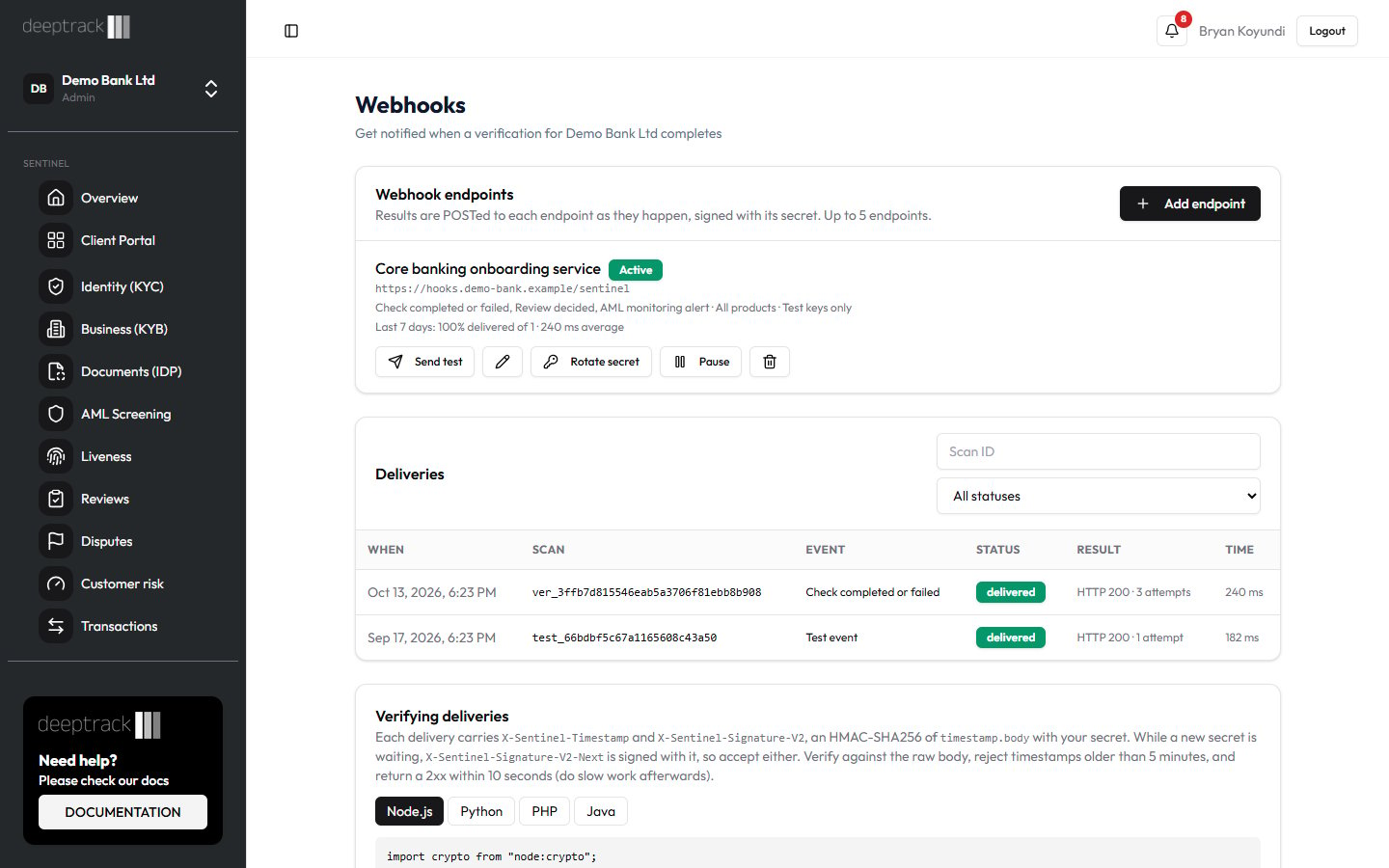
- Find Deliveries under your endpoints. It lists the latest 100 deliveries.
- Filter by Scan ID, by status, or by endpoint when you have more than one.
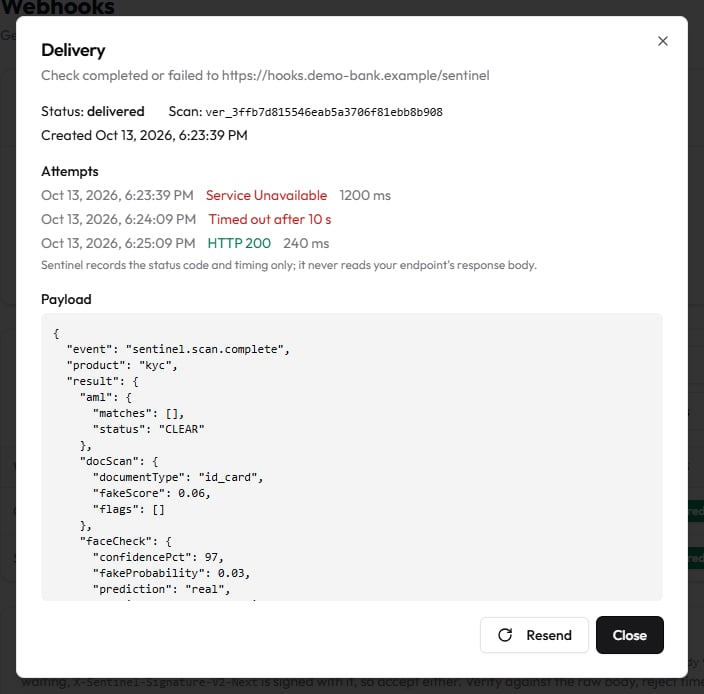
- Click a row to open it. You see each attempt with its HTTP status and time, and the exact payload that was sent.
- To send it again, click Resend. To resend every failed delivery for an endpoint, click Resend N failed on its row.
Rotate the secret
- On the endpoint’s row, click Rotate secret and confirm.
- Copy the new secret from the Signing secret dialog, tick I’ve stored this secret. and click Done.
- Deploy the new secret to your receiver alongside the old one. Until it is activated, deliveries are still signed with the old secret in
X-Sentinel-Signature-V2, and with the new one inX-Sentinel-Signature-V2-Next. - Click Activate now, or wait: the new secret takes over 24 hours after you rotated.
- Remove the old secret from your receiver.
What each result means
Events
Payload fields
Delivery statuses
Retries and pausing
A delivery fails when your endpoint returns anything other than 2xx, takes longer than 10 seconds, can’t be reached, or redirects (Sentinel doesn’t follow redirects). After a failure Sentinel tries again 1 minute, 5 minutes, 30 minutes, 2 hours, 6 hours and 24 hours later: 7 attempts in all. Then the delivery isfailed. A URL that isn’t a public HTTPS address isn’t retried.
After 20 failed attempts in a row, the endpoint is paused, its queued deliveries are held, and Admins and Developers get a Webhook paused notification. Click Resume to send the held deliveries, oldest first.
Common questions
Can a delivery arrive twice?
Yes. A resend, or a review being decided, sends another delivery for the same check. Usescan_id and event to recognise one you have already handled, and fetch the check if you need its latest state.
Can I allowlist Sentinel’s IP addresses?
No. Deliveries don’t come from fixed IP addresses, so trust the signature instead.Do test-key checks send webhooks?
Yes, to endpoints set to Live and test or Test keys only. The result sayssandbox: true.
Does Sentinel read my endpoint’s response?
No. It records only the status code and how long the response took.Who hears about a paused endpoint?
Admins and Developers, in the app and by email, by default. An Admin can change this in Settings → Notifications. See A9 Notifications (in Sentinel’s in-app Help).Related guides
- Quick start
- KYC API
- AML and monitoring API
- Results and credits
- A9 Notifications (in Sentinel’s in-app Help)